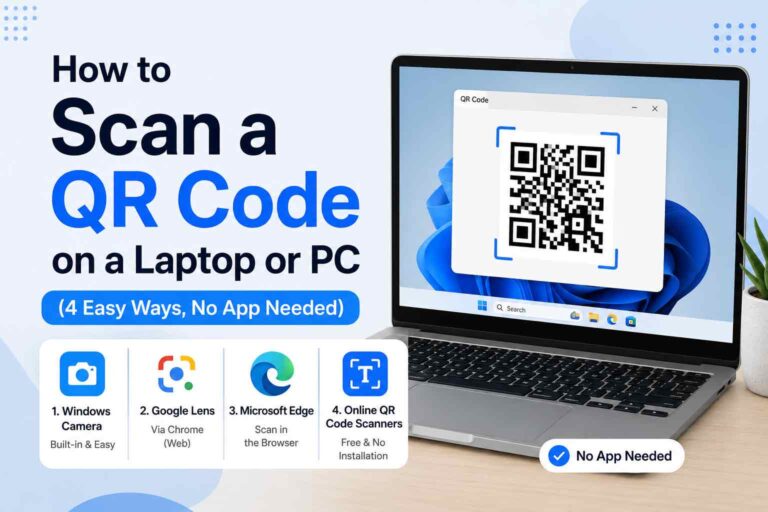
You saved a QR code from WhatsApp. Or it is sitting inside a PDF on your laptop. Or it is in your iPhone camera roll and your camera just will not read it properly.
These are three of the most common situations where people get stuck. The QR code is right there on the screen but there is no clean way to point a camera at it.
This guide covers all three situations in plain steps. No confusing technical language, no apps to install.
Part 1: How to Scan a QR Code from WhatsApp
Someone sent you a QR code image through WhatsApp. Here is how to scan it depending on what device you are on.
If you are on WhatsApp on your phone:
- Open the WhatsApp chat and find the QR code image
- Tap and hold the image, then tap Save to Gallery or Download
- Now the image is saved on your phone
- Open thestackanalyst.com/free-qr-code-scanner-online in your phone browser
- Tap Upload, select the saved image from your gallery
- The QR code gets decoded in seconds
If you are on WhatsApp Web on your laptop:
- Right-click the QR code image in the chat
- Select Save Image As and save it to your computer
- Open thestackanalyst.com/free-qr-code-scanner-online in a new browser tab
- Click Upload and select the saved image
- Your result appears within a few seconds
Shortcut on iPhone: If someone sends you a QR code on WhatsApp and you are using an iPhone with iOS 16 or later, tap and hold the image in the chat. Tap Save to Photos, then open it in your Photos app and long-press the QR code. Your iPhone may decode it automatically right there.
Part 2: How to Scan a QR Code from a PDF
A QR code inside a PDF is one of the trickier situations because you cannot directly upload a PDF to most QR scanners. But there is a simple workaround that takes about 20 seconds.
On a laptop or PC (Windows or Mac):
- Open the PDF file on your computer
- Scroll to the page that has the QR code
- Take a screenshot of just the QR code area
- Windows: Press
Windows + Shift + Sand draw a box around the QR code - Mac: Press
Shift + Command + 4and select the QR code area
- Windows: Press
- The screenshot saves automatically to your desktop or clipboard
- Go to thestackanalyst.com/free-qr-code-scanner-online
- Upload the screenshot and get your decoded result
On a phone (iPhone or Android):
- Open the PDF on your phone using any PDF viewer
- Navigate to the page with the QR code
- Take a screenshot of that screen
- Open thestackanalyst.com/free-qr-code-scanner-online in your browser
- Upload the screenshot and the scanner reads the QR code for you
Tip: When taking the screenshot, try to crop it so the QR code fills most of the frame. A larger, cleaner image gives a faster and more accurate scan result.
Part 3: How to Scan a QR Code from an iPhone Photo or Screenshot
You have a QR code saved in your iPhone photos or camera roll. Here are two ways to scan it without needing another device.
Option A: Use the iPhone built-in long-press feature (iOS 16 and above)
- Open the Photos app on your iPhone
- Find and open the photo or screenshot that contains the QR code
- Press and hold your finger directly on the QR code for about one second
- A small popup appears at the bottom of the screen
- Tap Open in Safari to follow the link, or tap the relevant option for your QR code type
This is the fastest method if you are on a newer iPhone. Your phone does all the work without opening any extra app or website.
Option B: Use the free online scanner (works on all iPhones)
If the long-press method does not work on your iPhone model or iOS version, this option works on every iPhone regardless of age.
- Open Safari or Chrome on your iPhone
- Go to thestackanalyst.com/free-qr-code-scanner-online
- Tap the Upload button
- Select the photo or screenshot from your camera roll
- The result shows up on screen in a few seconds
This also handles QR codes that contain WiFi passwords, contact cards or plain text, which the iOS built-in feature sometimes misses.
Which Situation Are You In? Quick Reference
| Where Is Your QR Code? | Fastest Method |
|---|---|
| WhatsApp message on phone | Save image, upload to online scanner |
| WhatsApp Web on laptop | Right-click, save image, upload to online scanner |
| Inside a PDF on laptop | Screenshot the QR area, upload to online scanner |
| Inside a PDF on phone | Screenshot the screen, upload to online scanner |
| iPhone photo or camera roll (iOS 16+) | Open in Photos app, long-press the QR code |
| iPhone photo, older iOS or any other case | Upload to online scanner via Safari or Chrome |
Scan Not Working? Common Fixes
| Problem | Fix |
|---|---|
| QR code is too small in the image | Crop the screenshot tightly around just the QR code and try again |
| Image quality is poor or blurry | Ask for a better version of the image or zoom in more before screenshotting |
| One of the QR code corners is cut off | All three corner squares must be fully visible for any scanner to work |
| iPhone long-press is not detecting it | Use the online scanner method instead, it works on every iPhone |
| PDF screenshot came out blurry | Zoom into the PDF page more before taking the screenshot, then crop to just the QR code |
Frequently Asked Questions
Can I scan a WhatsApp QR code without downloading any app?
Yes. Save the QR code image from WhatsApp to your phone or computer, then upload it to thestackanalyst.com/free-qr-code-scanner-online. The result appears instantly and nothing needs to be installed.
Can I scan a QR code directly from a PDF without taking a screenshot?
Most QR scanners only accept image files like JPG and PNG, not PDF files. Taking a quick screenshot of the QR code area in the PDF is the easiest workaround. It takes less than 10 seconds.
Why is my iPhone not detecting the QR code when I long-press?
The long-press QR detection on iPhone works best for URL type QR codes and requires iOS 16 or above. If it is not working, use the online scanner through Safari. That handles all QR code types on every iPhone model.
Is the WhatsApp QR code I received safe to scan?
That depends on who sent it to you. The scanner will show you the decoded link or content before you click on anything. Always read what the QR code says before tapping on a link, especially from unknown contacts.
Does the online scanner store my images?
No. The Stack Analyst scanner processes your image in the browser and does not store or upload your files anywhere. Your images stay on your device.
Can I scan a QR code from a PDF on my iPhone?
Yes. Open the PDF, screenshot the page with the QR code, then upload that screenshot to the online scanner through Safari. Done in under a minute.
Related Guides You Might Find Useful
Wrapping Up
Whether your QR code is buried in a WhatsApp message, stuck inside a PDF or sitting in your iPhone camera roll, you now have a clear way to read it without any hassle.
The method that works in all three situations is uploading the image to a free online scanner. It handles every QR code type, works on every device and does not require anything to be installed.
Try the free QR code scanner now at The Stack Analyst.
If something is not working for you, drop a comment below and we will help you figure it out.