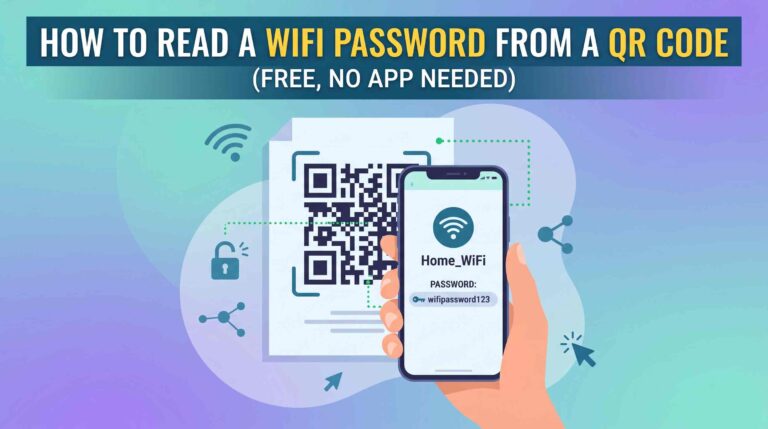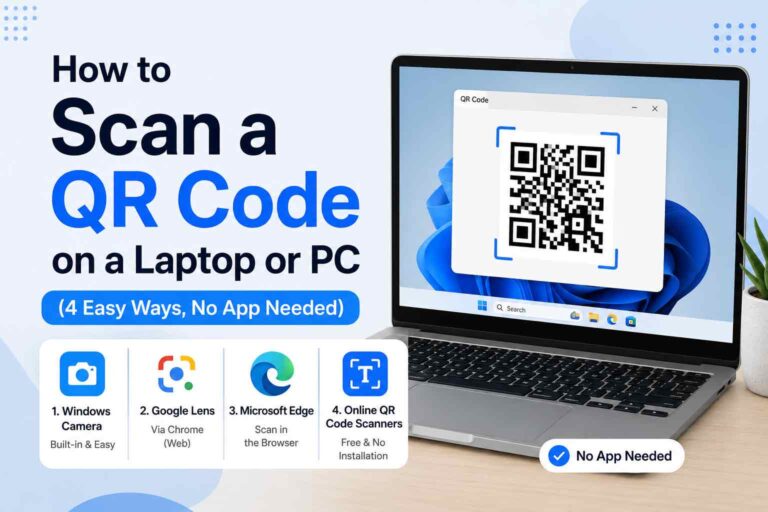
You got a QR code in a WhatsApp message. Or maybe you saved a screenshot of an event ticket. Or a friend sent you a QR code image over email.
The problem? Your camera cannot scan a QR code that is already on your screen.
The good news is you do not need a second phone, you do not need to install any app, and you do not need to be tech-savvy to solve this. In this guide, you will learn the easiest ways to scan a QR code from a screenshot or image in under 30 seconds, completely free.
Why Can’t You Just Point Your Camera at It?
Your phone camera works by pointing at something in front of it. When the QR code is already on your screen, pointing your camera at it is awkward and usually does not work well because of screen glare and focus issues.
That is why online QR code scanners from images exist. Instead of using a camera, you simply upload the screenshot and the tool reads the QR code for you instantly. No camera. No second phone. No app download.
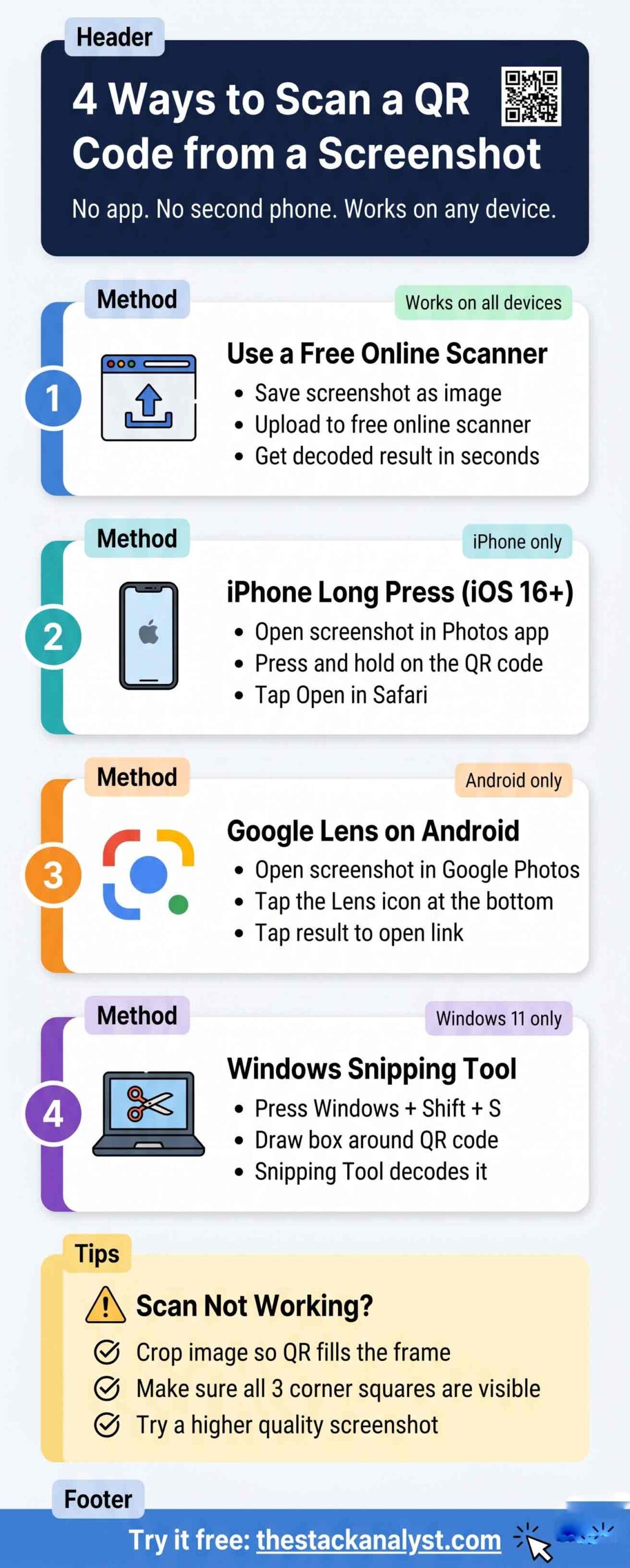
Method 1: Use a Free Online QR Code Scanner (Easiest Way)
This is the fastest method and it works on every device including PC, laptop, iPhone and Android. If you want to get this done quickly, this is the one to use.
Step 1: Save your QR code as an image
If you already have the QR code saved as a photo or screenshot, you are ready to go. If not, here is how to save it quickly:
- On Windows: Press
Windows + Shift + Sto take a screenshot and save it - On Mac: Press
Shift + Command + 4to capture and save a selected area - On iPhone or Android: Take a screenshot using your phone buttons as usual
Step 2: Open the free QR code scanner
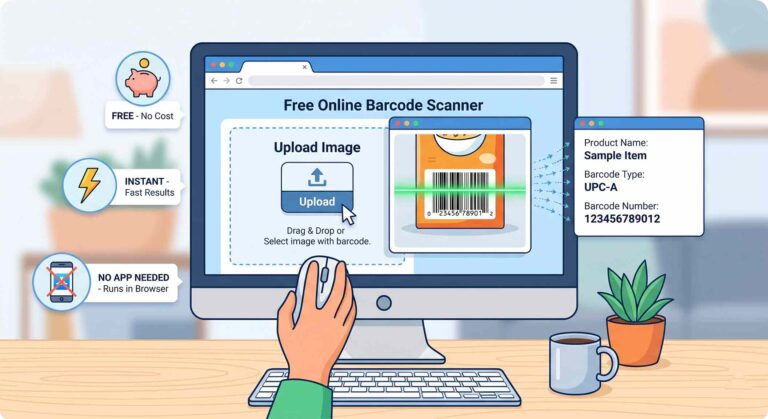
Go to the Free QR Code Scanner on The Stack Analyst. It is a browser-based tool, so there is nothing to install and no account needed.
Step 3: Upload your screenshot
Click the Upload Image button on the scanner page and select the screenshot or QR code image from your device. The tool accepts JPG, PNG and WebP formats, which covers all standard screenshots.
Step 4: Get your result
The scanner reads the QR code from your image and shows you the decoded link, text, WiFi password, or whatever information was stored inside. It usually takes less than 3 seconds.
Tip: If the scan does not work on the first try, crop the image so the QR code takes up most of the frame, then upload it again. This fixes most issues.
Method 2: Scan QR Code from Screenshot on iPhone
If you are on an iPhone running iOS 16 or later, your phone has a built-in trick that a lot of people do not know about. No extra app needed.
Steps:
- Open your Photos app
- Find the screenshot that has the QR code in it
- Tap the image to open it fullscreen
- Press and hold directly on the QR code for about one second
- A small menu will appear, tap Open in Safari to follow the link
Your iPhone decodes the QR code right there without any extra steps. Pretty handy.
One thing to note: This method works well for QR codes that link to websites. For WiFi passwords or contact cards stored in a QR code, the online scanner method above gives more reliable results.
Method 3: Use Google Lens on Android
Android users can use Google Lens, which is already installed on most Android phones. Here is how to do it:
- Open Google Photos on your phone
- Find and open the screenshot or image with the QR code
- Tap the Lens icon at the bottom of the screen
- Google Lens scans the image automatically and detects the QR code
- Tap the result to open the link or copy the content
If you are on a Samsung phone, open the screenshot in your Gallery app and look for the Lens icon there. Samsung has Google Lens built right into the gallery, so you do not even need to open a separate app.
Method 4: Scan a QR Code Image on PC or Laptop
Working on your computer and need to scan a QR code from an image file? This is straightforward.
On Windows:
- Save the QR code image to your desktop or downloads folder
- Open thestackanalyst.com/free-qr-code-scanner-online in your browser
- Click Upload and select the image file
- The decoded result appears on screen in seconds
On Mac:
Same steps as above. You can also try right-clicking a QR code image inside Chrome browser and selecting Search Image with Google Lens. Chrome sometimes decodes QR codes directly this way.
When Would You Actually Need This?
Here are the situations where scanning a QR code from a screenshot comes in useful:
- WhatsApp or Telegram: Someone sends you a QR code image in a chat and you need to open the link without switching devices
- Email attachments: A QR code arrives in an email as a boarding pass, event ticket or payment code
- PDF documents: A QR code is embedded in a PDF file on your laptop
- WiFi sharing: A friend shares a WiFi QR code via screenshot and you want to connect your laptop
- Old or basic phones: Your phone does not have a built-in QR scanner and you cannot install apps
QR Code Not Scanning? Try These Fixes
If your upload is not giving a result, one of these fixes usually solves it:
| Problem | Quick Fix |
|---|---|
| QR code is too small in the image | Crop the image tightly so the QR code fills most of the frame |
| Image is blurry | Ask for a higher quality version, or zoom in and take a fresh screenshot |
| Part of the QR code is cut off | All three corner squares need to be fully visible for it to work |
| Low contrast (gray on white) | Increase the brightness and contrast using your phone photo editor |
| Screenshot of a screenshot | Quality drops with each copy, try to get the original image |
Frequently Asked Questions
Can I scan a QR code from a screenshot without a second phone?
Yes. Use a free online scanner like the one at thestackanalyst.com/free-qr-code-scanner-online. Just upload your screenshot and the tool decodes it instantly without needing a second device.
Is it safe to scan QR codes from images online?
Yes, as long as you use a trusted tool. The Stack Analyst scanner processes your image right in the browser and does not store your files. Always check the decoded link before clicking on it to make sure it looks legitimate.
What image formats does the scanner accept?
Most online QR scanners accept JPG, PNG and WebP, which covers virtually all standard screenshots and photos you would take on any device.
Can I scan a QR code that is inside a PDF?
Yes. Take a screenshot of the page in the PDF that has the QR code, save it as an image, then upload it to the online scanner. This works on both Windows and Mac.
What if the QR code still does not scan after uploading?
Crop your image so the QR code fills most of the frame, make sure the image is sharp and clear, and check that all three corner squares of the QR code are fully visible. Then try uploading again.
Does this work on iPhone and Android?
Yes. The online scanner works in any mobile browser including Chrome, Safari and Firefox. Open the website, tap Upload, select your screenshot from your gallery, and you will have your result within seconds.
Quick Recap
| Method | Best For | App Needed? |
|---|---|---|
| Online QR Scanner (recommended) | Any device, any QR type | No |
| iPhone long-press | iPhone iOS 16 and above | No |
| Google Lens | Android phones | No (built-in) |
| PC or laptop browser upload | Windows and Mac computers | No |
The simplest and most universal option is the online QR code scanner because it works on every device, supports all QR types and requires nothing to install.
Try it free now: Scan QR Code from Image on The Stack Analyst
Wrapping Up
Scanning a QR code from a screenshot or saved image is a lot simpler than most people expect. You do not need a second phone, nothing to download, and no technical knowledge required.
Whether you are on a phone, tablet or laptop, at least one of the methods above will work for you in under 30 seconds. Bookmark this page for the next time someone sends you a QR code in a chat or email and you will know exactly what to do.
Have questions or ran into a problem? Drop a comment below and we will help you out.