Barcodes carry more information than most people realise. Behind those black lines is a number: a product ID, an ISBN, a shipment tracking code. Sometimes you need that number without having the physical item in front of you.
If the barcode exists only as a photo, a screenshot, or a scanned document, a physical scanner is useless. What you actually need is a way to decode an image. Here is everything you need to know about doing that, including when it works well and when it does not.
What Is Actually Inside a Barcode?
A barcode is just a visual way to encode a number so machines can read it faster than humans can type it. The pattern of thick and thin bars maps to digits using a fixed encoding standard. A scanner (physical or software-based) reads the widths, converts them to a number, and returns the result.
What that number means depends entirely on the barcode type and the database behind it:
- An EAN-13 barcode on a grocery product holds a 13-digit GS1 number linked to a product in a global database.
- A Code 128 barcode on a shipping label holds whatever tracking number the carrier assigned. It is not in any public lookup system; you just need the digits themselves.
- An ISBN barcode on a book is a standardised identifier you can search on any library system or book database.
Scanning the image gives you the number. What you do with it depends on what you are trying to find out.
How Online Barcode Scanning Works
A software barcode scanner analyses the pixel data in an image rather than using a laser or camera sensor. It looks for the contrast pattern that represents bars and spaces, measures their relative widths, and decodes the digit sequence from those measurements.
This means a standard JPEG photo or PNG screenshot is perfectly readable, as long as the image is sharp enough that the bar edges are distinguishable. A blurry or heavily compressed image loses those edges, which is why image quality matters more than anything else.
For most everyday images, a clear phone photo, a cropped screenshot, a scanned document, online decoding works reliably and takes only a few seconds.
How to Do It: Step by Step
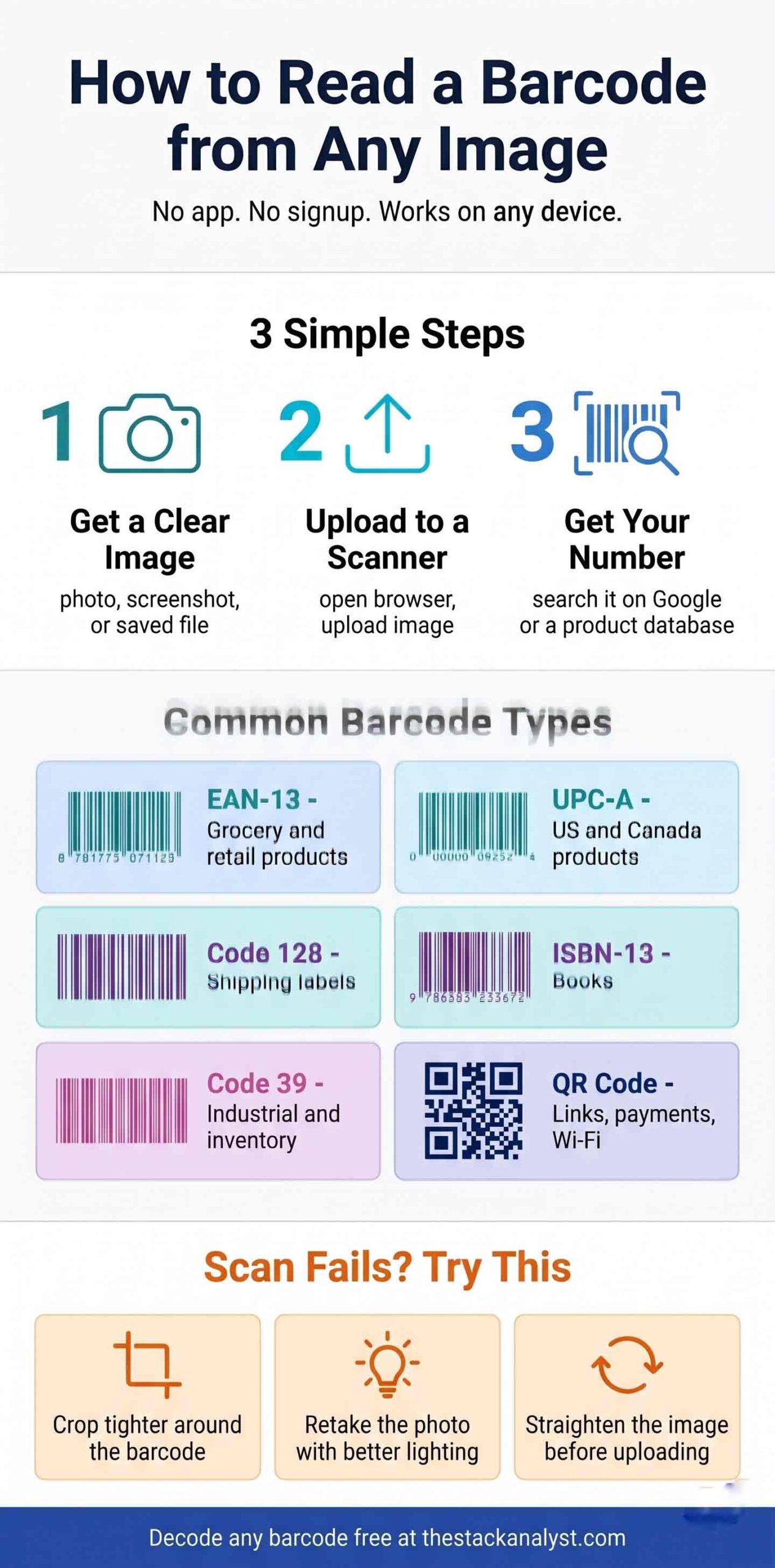
Step 1: Get a usable image
The barcode does not need to fill the entire frame, but it should be large enough to see individual bars clearly when you zoom in. Common sources that work well:
- A phone photo taken in decent light, avoiding harsh shadows across the barcode
- A screenshot of a product listing, email, or document shown on screen
- A downloaded image from a website or marketplace listing
- A scanned document saved as JPG or PNG at a reasonable resolution
If the barcode is currently visible on your screen, the fastest approach is to crop directly to it. On Windows, Windows + Shift + S lets you draw a selection. On Mac, Shift + Command + 4 does the same. Capturing just the barcode area removes visual clutter and gives the decoder a cleaner target.
Step 2: Upload and decode
Open a browser-based barcode reader. The Stack Analyst’s free barcode scanner handles most common formats with no account or installation required. Upload your image and the result appears within seconds.
One tip worth knowing: If the scan fails on the first try, crop the image more tightly around the barcode before uploading. Scanners perform better when the barcode takes up most of the frame rather than appearing as a small element in a larger image.
Step 3: Use the decoded number
The scanner returns the raw number encoded in the barcode. Depending on what you need:
- For a product: Search the number on Google or paste it into a product database like UPCitemdb or Open Food Facts to find the product name, manufacturer, and other details.
- For a book: Search the ISBN on Google Books, WorldCat, or your library’s catalogue.
- For a shipment: Paste the tracking number directly into the carrier’s tracking page. FedEx, UPS, DHL, and India Post all accept raw tracking numbers.
Barcode Types and Where You Find Them
| Format | Digits / Characters | Typical Use |
|---|---|---|
| EAN-13 | 13 digits | Retail and grocery products sold internationally |
| UPC-A | 12 digits | Products sold in the US and Canada |
| EAN-8 | 8 digits | Small product packaging where space is limited |
| Code 128 | Variable (alphanumeric) | Shipping labels, logistics, internal tracking systems |
| ISBN-13 | 13 digits (starts with 978 or 979) | Books, searchable in any library or book database |
| Code 39 | Variable (alphanumeric) | Industrial and inventory barcodes, asset tags |
| QR Code | Up to ~4,000 characters | URLs, contact cards, payment systems, Wi-Fi credentials |
If you are unsure which format you have, that is fine. The scanner identifies it automatically.
When Online Scanning Works and When It Struggles
Works reliably
- Clear phone photos taken in normal indoor or outdoor light
- Screenshots of barcodes displayed on screens
- Product images from e-commerce listings, which are usually high resolution
- Scanned documents at 150 DPI or above
Works less reliably
- Heavily compressed images where fine detail is lost, which is common in messaging apps that reduce image quality before sending
- Barcodes that are physically damaged, torn, or partially obscured in the photo
- Very small barcodes photographed from a distance without zooming in
- Images with strong glare or shadows running across the barcode
Quick fixes for failed scans
| Problem | What to Try |
|---|---|
| Barcode is tiny in a large image | Crop tightly around the barcode and re-upload |
| Image looks blurry | Find a higher resolution source, or retake the photo closer up |
| Strong glare or reflection on the barcode | Retake the photo from a slightly different angle to shift the glare away |
| Barcode is at a steep angle in the photo | Straighten the image using your phone’s edit tools before uploading |
| Barcode is physically damaged | Try a different copy of the image if one exists. Damaged barcodes may not decode at all |
Device-Specific Notes
| Device | Getting the Image | Uploading |
|---|---|---|
| iPhone / iPad | Camera roll photo or screenshot | Open Safari, go to the scanner page, tap Upload, select from Photos |
| Android | Gallery photo or screenshot | Open Chrome, go to the scanner page, tap Upload, select from gallery |
| Windows | Win + Shift + S screenshot or saved file | Any browser, go to the scanner page, click Upload, select file |
| Mac | Shift + Cmd + 4 screenshot or saved file | Any browser, go to the scanner page, click Upload, select file |
Frequently Asked Questions
I have the barcode number. How do I find the product name?
The scanner gives you the raw number; it does not look up the product for you. Take that number and search it on Google, or paste it into a product database. UPCitemdb is useful for retail products. Open Food Facts covers grocery and food items and includes nutritional data too.
Can I decode a barcode printed on a receipt?
Yes, as long as the photo or scan is clear. Thermal receipt paper fades over time, so a fresher receipt photograph tends to work better than an old one.
Does it work for courier and postal tracking barcodes?
Yes. Shipping labels typically use Code 128. The decoded number is the tracking code, which you can enter directly on the carrier’s website.
What if the image has multiple barcodes?
Most online scanners read the most prominent barcode in the image. If you need a specific one from a label that has several, crop to isolate just that barcode before uploading.
Is there a faster way if I am doing this regularly?
If you process many barcode images at once, look into batch-capable solutions or barcode reading libraries like ZXing or ZBar that can be integrated into a workflow. For occasional use, an online tool is more than adequate.