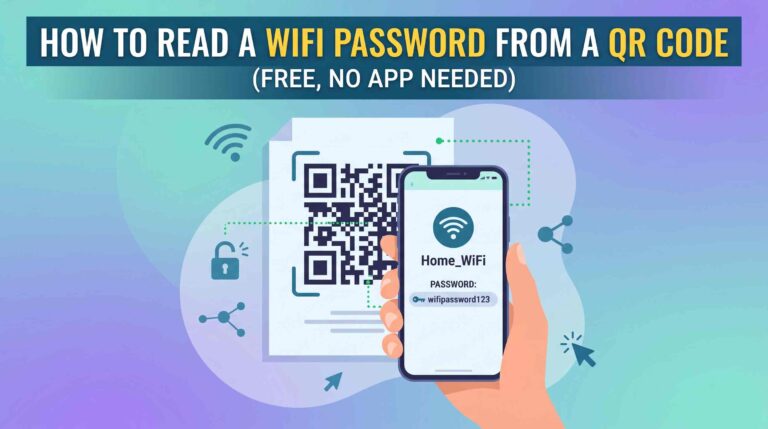
QR codes are everywhere now. Restaurant menus, event tickets, payment links, WiFi passwords. But there is one situation that catches a lot of people off guard.
You are sitting at your laptop or PC and you need to scan a QR code. Maybe it is in an email. Maybe it is in a PDF. Maybe someone sent it to you on WhatsApp and you are looking at it right there on your screen.
Pointing your phone at the laptop screen works sometimes, but it is messy. Screen glare, focus problems and bad angles make it frustrating. There are much better ways to do this.
In this guide you will learn 4 simple ways to scan a QR code on a laptop or PC, without needing a second phone or installing any software.
Method 1: Upload the QR Code to a Free Online Scanner (Quickest Way)
This is the easiest method and works on both Windows and Mac. If the QR code is in an image, email, PDF or anywhere on your screen, this will get you the result in under 30 seconds.
Step 1: Save the QR code as an image
First you need the QR code saved as an image file on your computer. Here is how to do that depending on where the QR code is:
- QR code is on a webpage: Right-click it and select Save Image As to download it
- QR code is in an email: Right-click the image and save it, or take a screenshot of it
- QR code is in a PDF: Take a screenshot of that section of the PDF
- QR code is anywhere on your screen: Press
Windows + Shift + Son Windows orShift + Command + 4on Mac to take a screenshot of just the QR code area
Step 2: Open the free QR code scanner
Go to The Stack Analyst Free QR Code Scanner. It runs completely in your browser, no download or account needed.
Step 3: Upload the image and get your result
Click the Upload button, select your saved QR code image, and the scanner will decode it within seconds. You will see the link, text, WiFi password, or whatever the QR code contains.
Tip: If the result does not come up, try cropping your screenshot so the QR code fills most of the image, then upload it again. This fixes most scan failures.
Method 2: Use Your Laptop Webcam to Scan the QR Code Live
If the QR code is on a physical item in front of you, like a product, flyer, business card or a printed sheet, you can use your laptop webcam to scan it directly.
Steps:
- Go to thestackanalyst.com/free-qr-code-scanner-online
- Look for the Use Camera or Webcam option on the page
- Allow the browser to access your webcam when it asks for permission
- Hold the QR code up in front of your laptop camera
- Keep it steady and well lit, the scanner will detect and decode it automatically
Make sure the QR code is fully inside the camera frame and there is enough light in the room. A well-lit QR code on a flat surface scans in under 3 seconds.
Method 3: Use Google Chrome’s Built-In Lens Feature
If you use Google Chrome as your browser, you already have a QR code scanning tool built right in. Most people do not know this exists.
For a QR code image on a webpage:
- Right-click the QR code image on the webpage
- Select Search Image with Google Lens from the menu
- A panel opens on the right side of Chrome
- Google Lens scans the image and shows you the decoded link or content
For a QR code in a screenshot or saved file:
- Click the Google Lens icon in the Chrome address bar (looks like a small camera or search icon)
- Select Upload a file and choose your QR code image
- Lens will read the QR code and display the result
This method works well if the QR code links to a website. For other types like WiFi codes or vCards, the online scanner in Method 1 handles those better.
Method 4: Use Windows Snipping Tool (Windows 11 Users)
If you are on Windows 11, the Snipping Tool got a useful update that lets you scan QR codes directly from your screenshots. No browser or upload needed.
Steps:
- Press
Windows + Shift + Sto open the Snipping Tool - Draw a selection box around the QR code on your screen
- The screenshot opens in the Snipping Tool window
- Look for the QR code icon or text recognition option in the toolbar
- Click it and Windows will decode the QR code and show you the link
This is a quick option if you are already on Windows 11 and the QR code is visible on your screen. For older versions of Windows, Method 1 is your best option.
Which Method Should You Use?
Here is a simple way to decide based on your situation:
| Your Situation | Best Method |
|---|---|
| QR code is in an email, PDF or screenshot | Method 1 (upload to online scanner) |
| QR code is on a physical item in front of you | Method 2 (webcam scan) |
| QR code is on a webpage you are browsing | Method 3 (Chrome Google Lens) |
| QR code is visible on your screen and you use Windows 11 | Method 4 (Snipping Tool) |
When you are not sure which to pick, Method 1 always works regardless of where the QR code is or what type of content it holds.
Common Situations Where People Need This
Just so you know this is not a rare problem, here are the situations we hear about most often:
- WhatsApp Web: Someone sends you a QR code on WhatsApp and you are using WhatsApp on your laptop
- Work emails: A vendor or client sends a payment or login QR code by email
- Event tickets: You have a QR code for a concert or flight saved in your email and need to check what it says
- WiFi sharing: You have a WiFi QR code image and need to find the actual password from it for a device that cannot scan
- Online forms and documents: A PDF or Google Doc contains a QR code and you need to follow the link on your computer
Scan Not Working? Here Are the Fixes
If your QR code is not being detected, one of these usually sorts it out:
| Problem | Fix |
|---|---|
| QR code is very small in the image | Crop the image to zoom into just the QR code area |
| Image is blurry or pixelated | Get a higher quality version or take a cleaner screenshot |
| Part of the QR code is cut off | Make sure all three corner squares are fully visible in the image |
| Webcam scan is not picking it up | Move to better lighting and hold the QR code flat and steady |
| Tried one tool and it failed | Switch to the online scanner at thestackanalyst.com and try uploading the image there |
Frequently Asked Questions
Can I scan a QR code on my laptop without a phone?
Yes. You can upload the QR code image to a free online scanner like this one and get the result instantly. No phone needed at any point.
Do I need to install any software on my PC to scan QR codes?
No. All the methods in this guide work through your browser or through features already built into Windows and Chrome. Nothing to install.
Can I scan a QR code from a PDF on my laptop?
Yes. Take a screenshot of the part of the PDF that shows the QR code, save it as an image, then upload it to the online scanner. Works on both Windows and Mac.
What if the QR code is on my screen and I cannot right-click it?
Use the screenshot shortcut. On Windows press Windows + Shift + S and draw a box around the QR code. On Mac press Shift + Command + 4 and do the same. Then upload that screenshot to the online scanner.
Does this work on Mac as well as Windows?
Yes. Method 1 and Method 2 work on any laptop or desktop regardless of the operating system. Method 4 is Windows 11 specific, but the others all work fine on Mac.
Is the free online scanner safe to use?
Yes. The Stack Analyst scanner processes your image directly in the browser and does not store your files or data. Just make sure you check the decoded link before clicking it, especially if the QR code came from an unknown source.
Wrapping Up
Scanning a QR code on a laptop or PC is not as complicated as it seems at first. You have at least 4 different ways to do it and none of them require you to install anything or use a second device.
The fastest option in most situations is uploading the image to a free online scanner. It works with any QR code type, any image format, and on any computer.
Click here to scan your QR code now, free and instant.
If your QR code was already in a screenshot or saved image, you might also find this guide useful: How to Scan a QR Code from a Screenshot or Image
Got a question or ran into an issue? Drop it in the comments and we will help you sort it out.